アカウント設定と環境設定
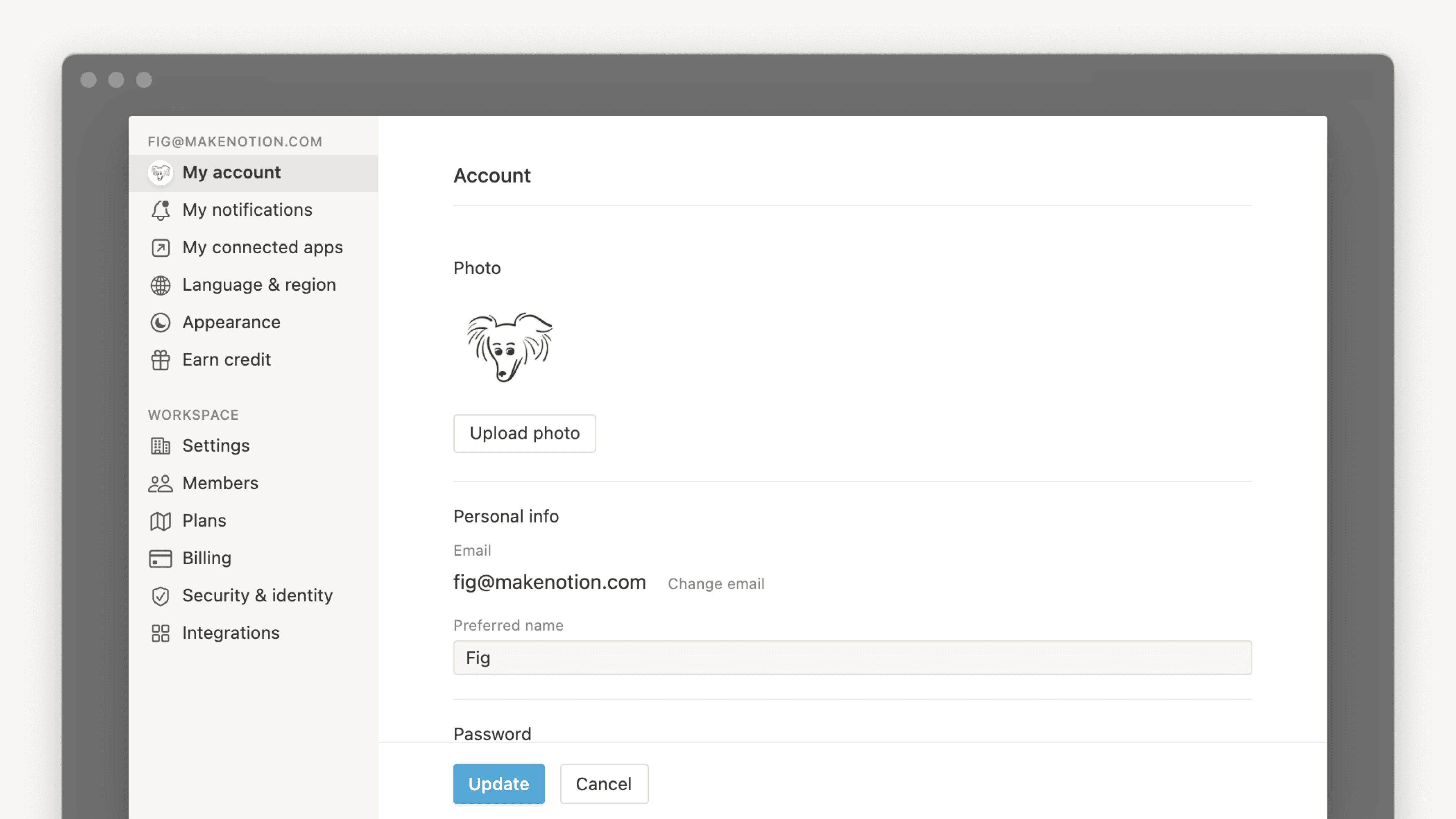
Notionには、調整可能なアカウント設定や環境設定が数多くあります ⚙️
よくあるご質問(FAQ)に移動プロフィール写真を変更するには、Notionのデスクトップ版またはWeb版を使用し、次の手順に従ってください。
サイドバーで、ワークスペース名の横にある下向き矢印を選択して、
設定に移動します。次に、{あなたの名前}を選択します。画像を追加の上にある、現在の写真またはイニシャルをクリックします。デバイスから使用するファイルを選択し、
開くをクリックします。
Notionで表示するユーザー名を変更する方法は以下のとおりです。
サイドバーで、ワークスペース名の横にある下向き矢印を選択して、
設定→{your name}に移動します。Notionで表示するユーザー名に、使用したい名前を入力します。
メインのメールアドレスは、デフォルトでアカウント通知が送信される場所です。1つのNotionアカウントに最大5つのメールアドレスを登録できます。
メインのメールアドレスの変更方法は以下のとおりです。
サイドバーで、ワークスペース名の横にある下向き矢印を選択して、
設定→{your name}に移動します。アカウントのセキュリティセクションで、メールを管理をクリックします。メールアドレスを追加 をクリックし、使用したい新しいメールアドレスを入力します。新しいメールアドレスに認証コードが送信されます。Notionにそのコードを入力して認証を行います。
確認が完了したら、新しいメールアドレスの横にある
•••メニューをクリックし、メインにするを選択します。必要に応じて、古いメールアドレスの横にある
•••メニューをクリックし、削除を選択して、古いメールアドレスを削除します。
メールエイリアスを使用すると、複数のメールアドレスをNotionアカウントに関連付けることができるようになりました。認証済みのエイリアスを使用して、ログインしたり、共有を受け取ったり、メンションされたりすることができます。いずれのエイリアスも同じアカウントに紐づけられます。
使用したいメールアドレスがすでに別のNotionアカウントに紐づけられている場合:
そのメールアドレスをエイリアスとして追加する前に、まずそのアカウントを削除する必要があります。他のアカウントにログインし、設定 → {your name} → 自分のアカウントを削除するに移動してから、メインアカウントに戻り、そのメールアドレスをエイリアスとして追加します。
エンタープライズプランのユーザーの場合:
自分でメールエイリアスを管理できるかどうかは、組織のポリシーによって異なります。管理者がエイリアスを無効(許可されていない)、検証済みドメインのみ(会社の検証済みドメインに一致するメールアドレスのみ)、有効(任意のメールアドレス)のいずれかに設定している可能性があります。エイリアスを追加できない場合は、ワークスペース管理者に連絡してください。
メールアドレスを変更しようとしているのですが「このメールアドレスのユーザーは既に存在しています」というエラーメッセージが表示されます。
アカウントのメールアドレスを、すでに別のNotionアカウントに紐づけられているメールアドレスに変更したい場合は、そのメールアドレスをエイリアスとして追加する前に、まずそのアカウントを削除する必要があります。手順は次のとおりです:
ご希望のメールアドレスに紐づけられたアカウントにログインし、
設定→{your name}→アカウントの削除に移動します。その後、メインアカウントに戻り、そのメールアドレスをエイリアスとして追加します。
Notionアカウントに複数のメールアドレスを登録できますか?
はい、できます。Notionアカウントで複数のメールアドレスを使用する方法の詳細については、セカンダリメールをご覧ください。

新しいメールアドレスが別のアカウントで既に使用されているというエラーが表示された場合は、そのメールアドレスに関連付けられているアカウントを削除してから、もう一度お試しください。
一時的なログインコードではなく、永続的なパスワードを使ってNotionにログインしたい場合は、次の手順を実行します。
サイドバーで、ワークスペース名の横にある下向き矢印を選択して、
設定→{your name}に移動します。パスワードを設定を選択します。セキュリティ要件を満たすパスワードを入力し、確認します。パスワードは、3文字以上の特殊文字、1文字以上のアルファベット、1文字以上の数字を組み合わせた8文字以上でなければなりません。
パスワードを変更または削除する場合は、以下の手順に従ってください。
サイドバーで、ワークスペース名の横にある下向き矢印を選択して、
設定→{your name}に移動します。パスワードを変更を選択します。新しいパスワードを入力して、
パスワードを変更を選択するか、パスワードを削除を選択します。

備考: パスワードは、Notionのサポートチームを含め、他人には絶対に教えないでください。Notionのサポートチームがパスワードを尋ねることはありません。
パスワードはすべて弊社のサーバー上で暗号化されているため、私たちはパスワードデータにアクセスすることはできません。
パスワードのリセット
パスワードを忘れた場合は、こちらの手順に沿ってリセットしてください →
2段階認証の詳細はこちら →
パスキーの詳細はこちら →

Notionへのログインとログアウトについて詳しくは、こちらの記事をご覧ください →
アカウントの削除について詳しくはこちら →
すべてのデバイスをログアウトする方法については、こちら →
デスクトップでNotionの表示をカスタマイズする方法は以下のとおりです。
サイドバーで、ワークスペース名の横にある下向き矢印を選択して、
設定→環境設定に移動します。表示設定の横にあるドロップダウンを開いて、以下のオプションから1つ選択します。システム設定を使用する:システムの表示設定に合わせた表示になります。ライトモード:ライトモードが適用されます。ダークモード:ダークモードが適用されます。
ライトモードとダークモードは、ショートカット
cmd/ctrl+shift+Lでいつでも切り替え可能です。
モバイルでNotionの表示をカスタマイズする方法は以下のとおりです。
サイドバーの上部の隅にある
•••をタップします。設定をタップして表示設定のセクションまでスクロールします。ドロップダウンを開いて、以下のオプションをから1つ選択します。
システム設定を使用する:システムの表示設定に合わせた表示になります。ライトモード:ライトモードが適用されます。ダークモード:ダークモードが適用されます。
備考: ダークモードへの切り替えは、お使いのアカウントでサインインしているすべてのワークスペースに適用されます。切り替えるとすべてのワークスペースがダークモードになります。
WebでNotionを使用中で、Notionページへのリンクをデスクトップアプリで開きたい場合:
サイドバーで、ワークスペース名の横にある下向き矢印を選択して、
設定→環境設定に移動します。リンクをデスクトップアプリで開くをオンにします。
デスクトップアプリをインストール済みであることが必要です。また、Notionのデスクトップアプリの設定で「リンクをブラウザで開く」がオフになっていることも確認してください。
Notionのリンクがデスクトップアプリで自動的に開かない場合
Notionページへのリンクがデスクトップアプリで自動的に開かない場合は、次の手順をお試しください。
ブラウザでリンクを開きます。
ページ右上の
•••をクリックします。表示されるメニューの一番下までスクロールし、Macアプリで開くをクリックします。
表示言語の変更方法は以下の通りです。
サイドバーの
設定→環境設定に移動します。言語と時間の下にある言語の横にあるドロップダウンを開きます。言語を選択します。
備考: モバイルでは、Notionアプリの言語はシステム環境設定の言語の優先順に従います。
Notionのカレンダーは、地域によって、日曜か始まりか月曜始まりに設定されています。これには、リマインダーやカレンダーデータベースの日付ピッカーも含まれます。カレンダーの開始曜日は、必要に応じて手動で変更できます。手順は次のとおりです:
サイドバーで、ワークスペース名の横にある下向き矢印を選択して、
設定→環境設定に移動します。言語と時間の下にある週の始めを月曜日にするをオンまたはオフに切り替えます。
タイムゾーンを変更する方法は次のとおりです。
サイドバーで、ワークスペース名の横にある下向き矢印を選択して、
設定→環境設定に移動します。言語と時間の下でタイムゾーンを手動で設定するか、タイムゾーンを自動的に更新するをオンにします。
Notionのデスクトップアプリを使用している場合は、サイドバーの設定 → 環境設定に移動してアプリの設定を管理できます。
起動時の横のドロップダウンを開き、中断したところから再開するを選択すると、前回アプリを閉じる直前に開いていたタブが開かれるようになります。または、常に同じページから開始したい場合は、デフォルトページを選択します。コマンド検索(ほかのアプリを使っているときでもすばやくNotionの検索を起動できる機能)を使いたい場合は、
コマンド検索を使用するをオンにします。この設定をオンにすると、メニューバーにNotionを表示するもオンにでき、画面上部からNotionにアクセスできるほか、コマンド検索ショートカットやNotion AIのキーボードショートカットも調節できます。新しいタブを作成するたびに検索機能を使用したい場合は、
新規タブ検索をオンにします。これにより、新しいタブを開いたときに、目的のページをすぐに検索して移動できるようになります。この設定がオフの場合は、デフォルトページ設定で指定したデフォルトのページが新しいタブに表示されます。デスクトップアプリの代わりにWebブラウザでNotionページへのリンクを開きたい場合は、
Notionリンクを開くをオンにします。また、Web版のNotionの設定でリンクをデスクトップアプリで開くがオフになっていることも確認してください。リンクがデスクトップアプリで開くように設定した場合、Notionページへのリンクをクリックするたびに、ブラウザは新しいタブを開いて自動的にデスクトップアプリにリダイレクトします。デスクトップアプリにリダイレクトされた後、これらのタブを自動的に閉じるようにするには、
リダイレクトのブラウザタブを閉じるをオンにします。
アカウント情報をページアナリティクスに記録することを希望しない場合は、完全に、または特定のページに対してオプトアウトすることができます。
アナリティクスへの参加をオプトアウトする方法:
サイドバーで、ワークスペース名の横にある下向き矢印を選択して、
設定→環境設定に移動します。プライバシーの下の閲覧履歴の表示の横にあるドロップダウンを開き、記録しないを選択します。
ページ分析について詳しくはこちら →
あなたのメールアドレスを知っているユーザーが、あなたを新しいワークスペースに招待するときに、あなたの名前とプロフィール写真を表示できるかどうかを決定できます。手順は次のとおりです。
サイドバーで、ワークスペース名の横にある下向き矢印を選択して、
設定→環境設定に移動します。プライバシーのセクションでプロフィールの表示を見つけます。これをオンにすると、あなたのメールアドレスを知っている人はあなたのプロフィールを表示できるようになり、オフにすると非表示になります。
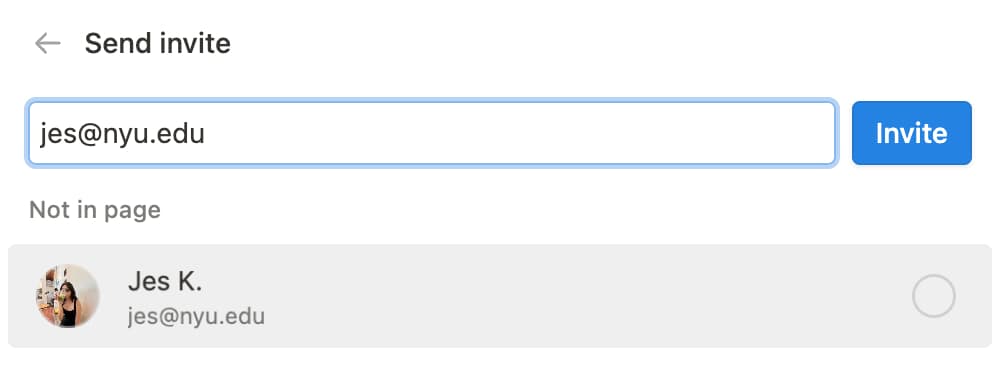
プロフィール表示機能をオンにした場合、ユーザーがあなたをワークスペースまたはページに招待する際にこのように表示されます。
プロフィール表示機能をオフにした場合、ユーザーがあなたをワークスペースまたはページに招待する際にこのように表示されます。
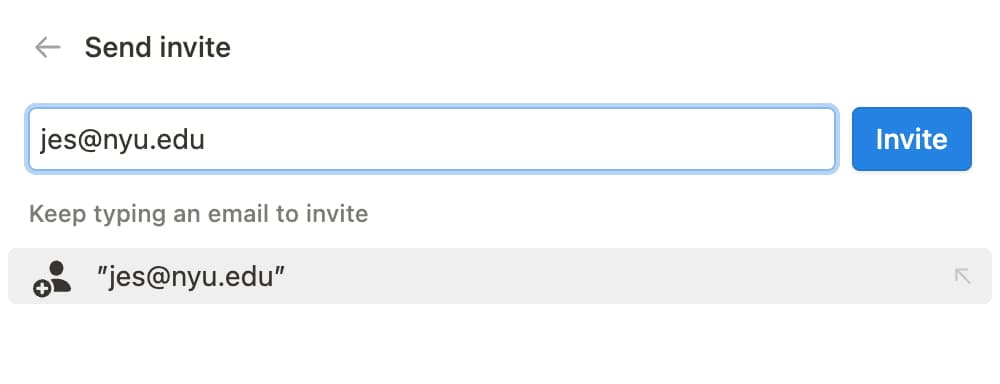
注: 招待を実施するユーザーと同じワークスペースにあなたがすでに所属している場合、またはそのワークスペースに参加した場合、あなたのプロフィールはそのユーザーに表示されるようになります。
よくあるご質問(FAQ)
パスワードを忘れました。どうすればよいですか?
パスワードを忘れました。どうすればよいですか?
パスワードを忘れた場合は、こちらの手順に沿ってリセットしてください →
メールアドレスかパスワードが変更されたというメールを受信しましたが、私は変更していません!
メールアドレスかパスワードが変更されたというメールを受信しましたが、私は変更していません!
予期せずパスワードの変更を通知するメールを受信した場合は、できるだけ早くパスワードをリセットする必要があります。次の手順に沿って操作してください。
お使いのブラウザーでnotion.so/loginにアクセスします。
メールアドレスでログインするボタンをクリックします。Notionアカウントで使用しているメールアドレスを入力します。
パスワードを忘れた場合ボタンをクリックし、次にリセット用リンクを送信するボタンをクリックします。メールアドレスにリンクが送信されます。そのリンクをクリックすると、Notionワークスペースの
設定に移動し、パスワードがリセットされます。このような疑わしいアクティビティがあった場合は、サポートチーム([email protected])にご報告ください。
メールアドレスを変更しようとしているのですが「このメールアドレスのユーザーは既に存在しています」というエラーメッセージが出ます。
メールアドレスを変更しようとしているのですが「このメールアドレスのユーザーは既に存在しています」というエラーメッセージが出ます。
アカウントのメールアドレスを、すでに別のNotionアカウントに紐づけられているメールアドレスに変更したい場合は、現在使用しているメールアドレスに紐づけられているメールアドレスにログインし、そのメールアドレスを削除してください。手順は次のとおりです:
ご希望のメールアドレスに紐づけられたアカウントにログインし、
設定→{your name}→アカウントの削除に移動します。メールアドレスを変更したいアカウントにログインし、
設定→{your name}→メールの変更に移動します。
誤って何かを完全に削除してしまった場合、元に戻すことはできますか?
誤って何かを完全に削除してしまった場合、元に戻すことはできますか?
ページやワークスペース、さらにはアカウント全体を誤って削除してしまったとしても、私たちがお助けします!間違いは起こるものです😅。サイドバーの下部にある?をクリックしてアプリ内でメッセージを送信するか、[email protected]までメールでご連絡ください。
弊社が保持するデータベースバックアップにより、必要に応じて過去30日分のコンテンツのスナップショットを復元することができます。